

MoniMata tracks your spending by reading the alert emails your bank sends you every time money moves in or out of your account. Once set up, new transactions appear in your dashboard automatically — no manual entry, no CSV imports.
This guide walks you through the entire process from creating your account to seeing your first auto-imported transaction, step by step.
What You'll Need
- A MoniMata account
- A Gmail account (the one that receives your bank alerts)
- Your bank is registered on MoniMata (currently supported: OPay and First Bank)
Step 1: Create Your MoniMata Account
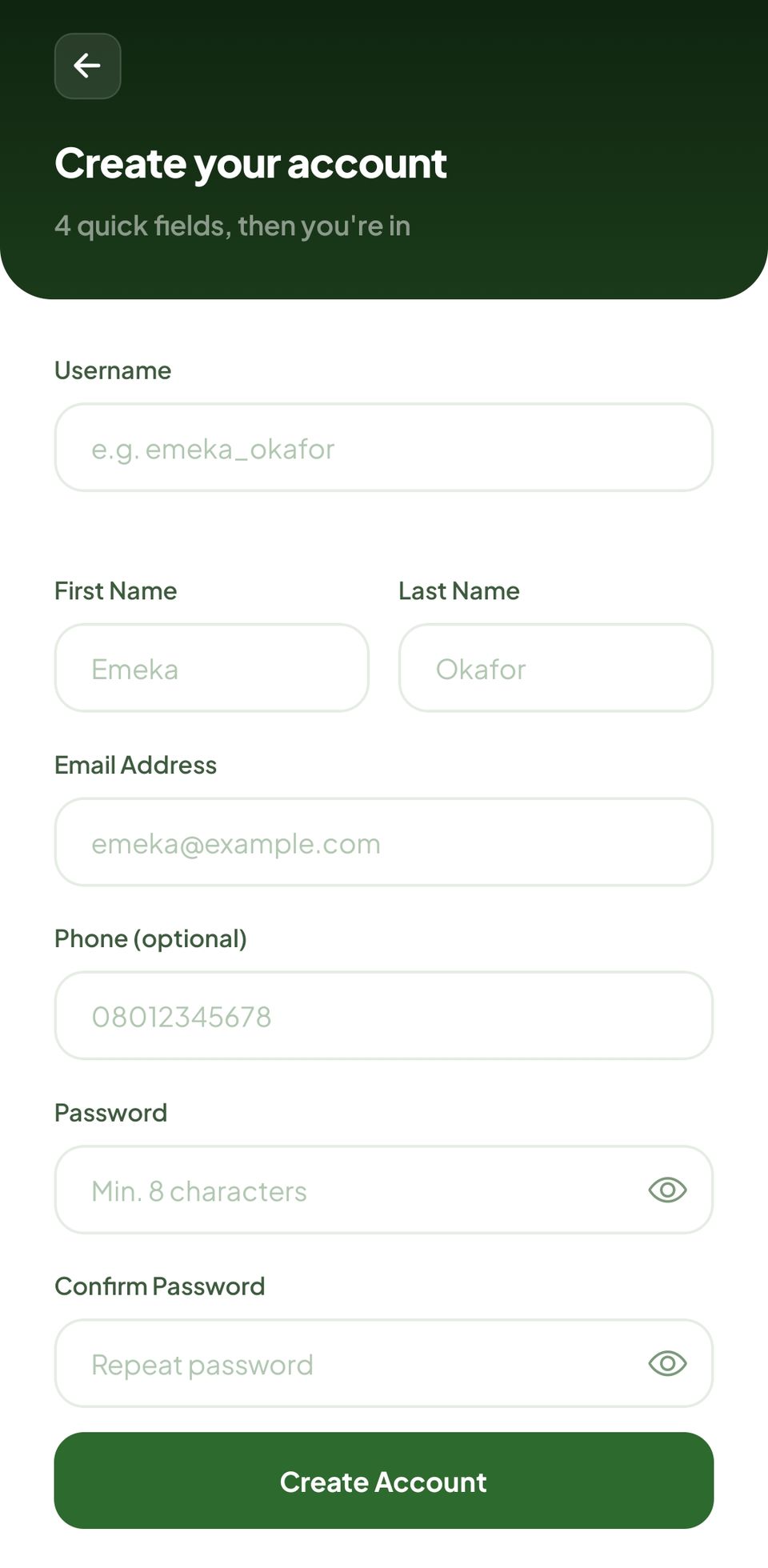
If you haven't already, download the MoniMata app and create an account. During sign-up, you'll choose a username. This is important because your unique email forwarding address is built from it:
Every bank alert forwarded to that address lands in your MoniMata inbox and gets parsed into a transaction automatically.
Step 2: Add Your Bank Account to the App
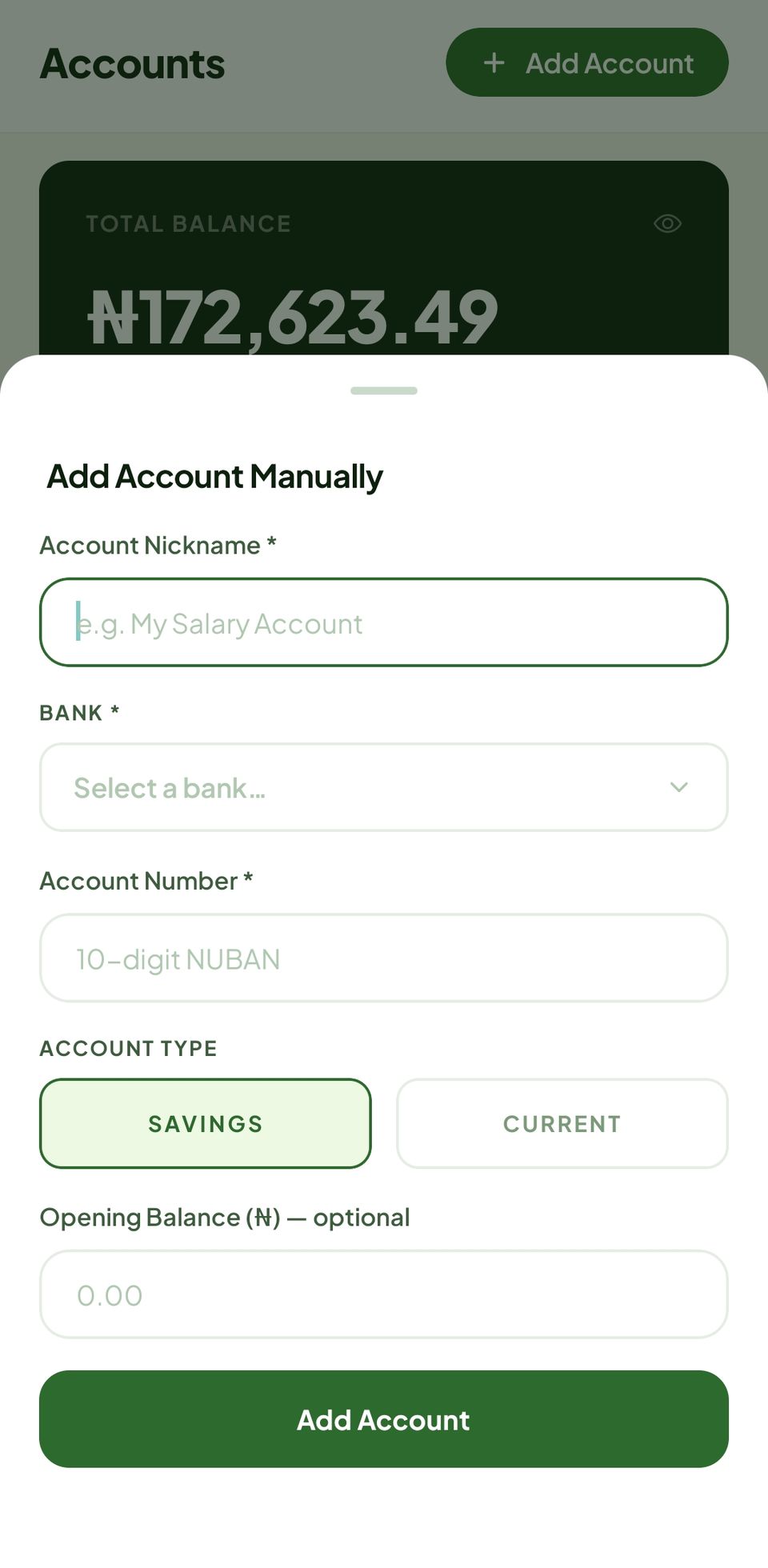
Before MoniMata can match an incoming alert to an account, the account needs to exist in the app.
- Open the app and tap Accounts in the bottom nav.
- Tap Add Account.
- Select your bank from the list.
- Enter your account number and give it an optional nickname (e.g. "Salary account").
- Tap Save.
Repeat this for every account you want to track.
Step 3: Download Your Gmail Filter File
MoniMata generates a ready-to-import Gmail filter file specifically for your account. It tells Gmail exactly which emails to forward and where to send them.
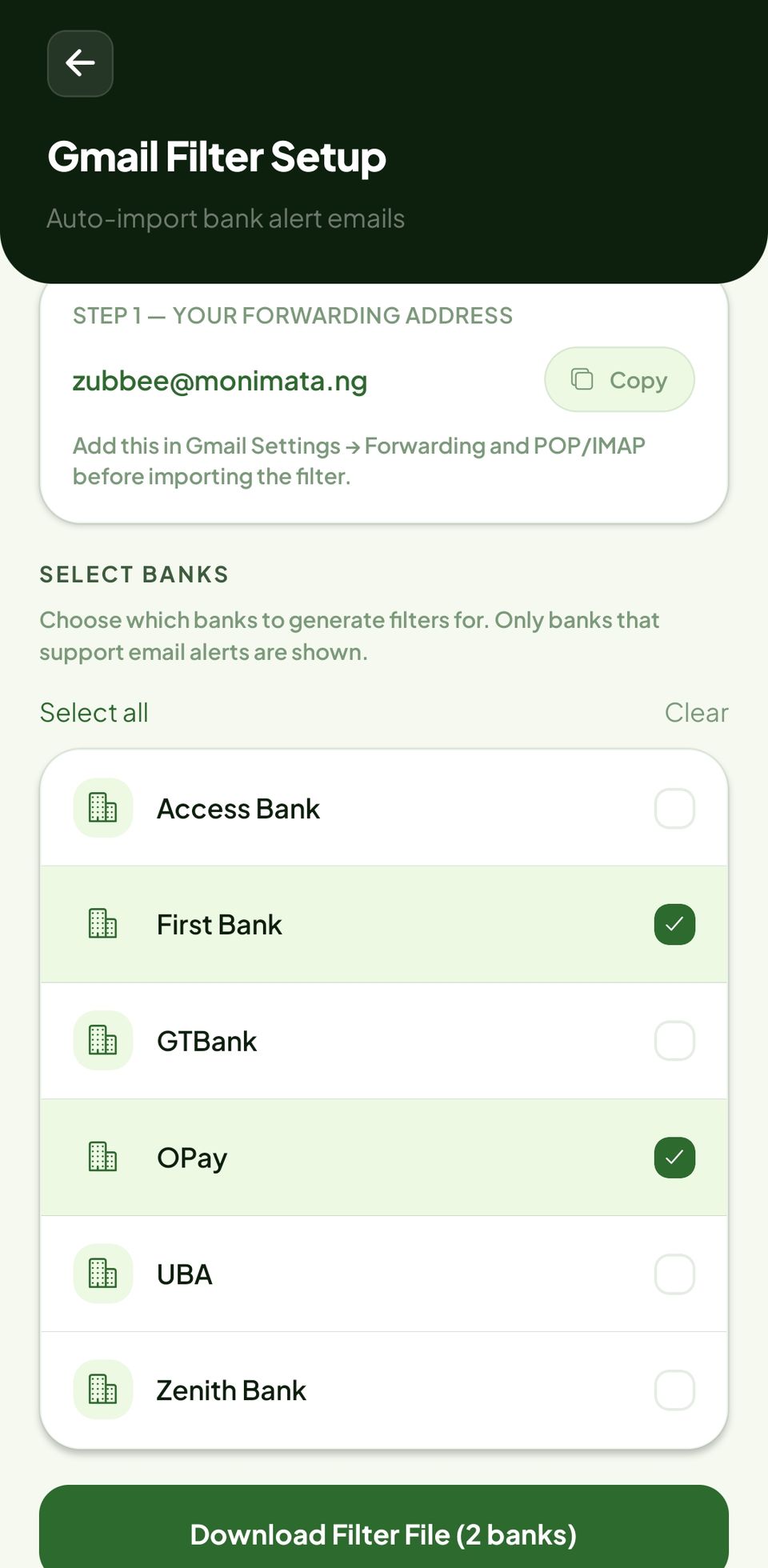
- In the app, go to Settings.
- Tap the Gmail Filter Setup.
- Select all the banks you want to forward alerts from.
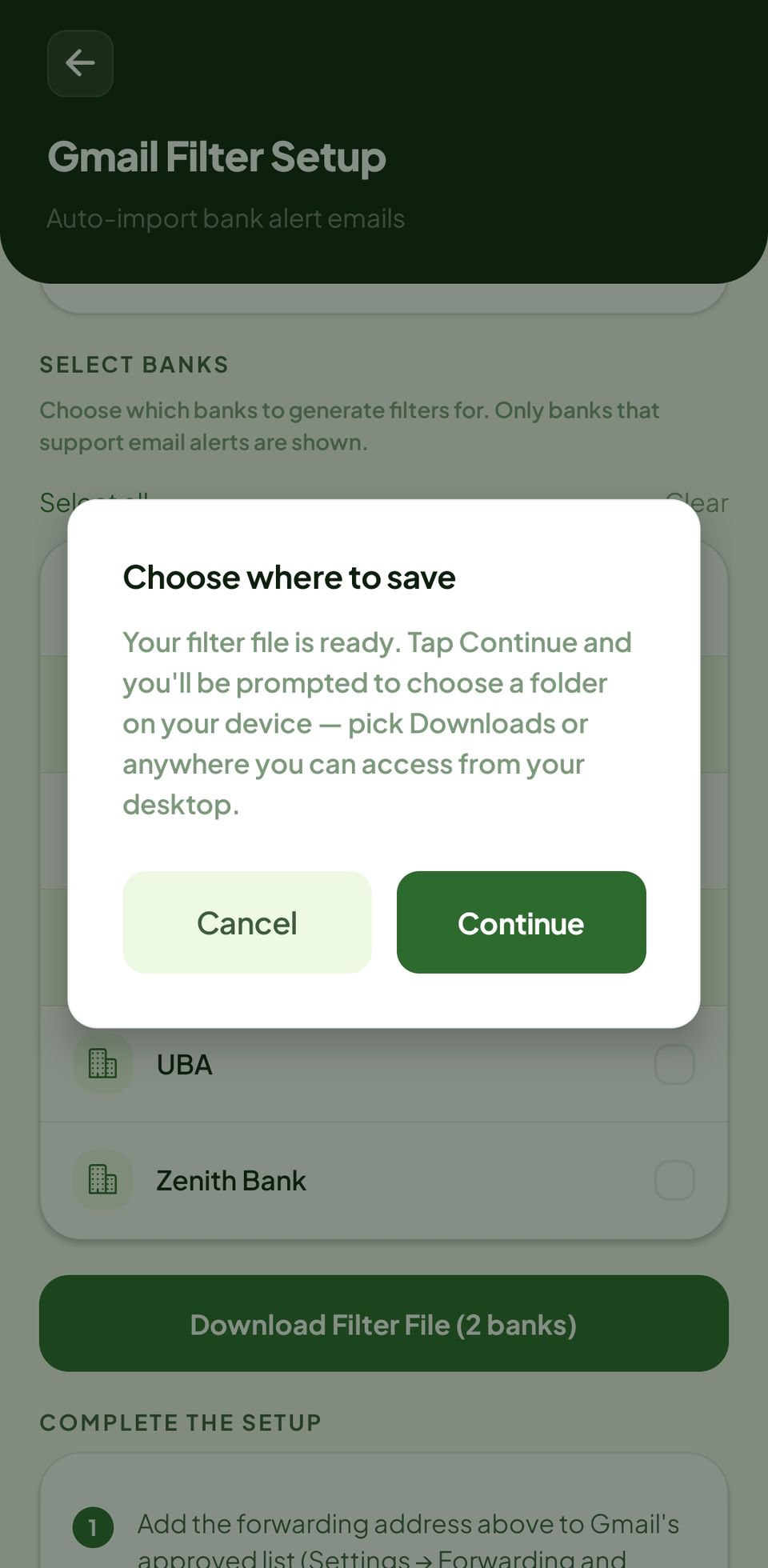
- Tap Download Filter File.
A file called monimata-gmail-filter.xml will download to your device.
What's in the file? The XML contains one Gmail filter rule per bank alert keyword. For example, GTBank generates three rules, one each for "Transaction Alert", "Credit Alert", and "Debit Alert" because Gmail can only match one phrase per filter. MoniMata handles this complexity for you automatically.
Step 4: Add the Forwarding Address in Gmail
Before importing the filter, you need to tell Gmail that username@monimata.ng is a trusted address to which it is allowed to forward mail. Gmail will send a verification email to confirm the address is active before allowing you to use it in any filter.
Please complete this step using desktop mode on your mobile browser, as the Gmail mobile app doesn't support these settings.
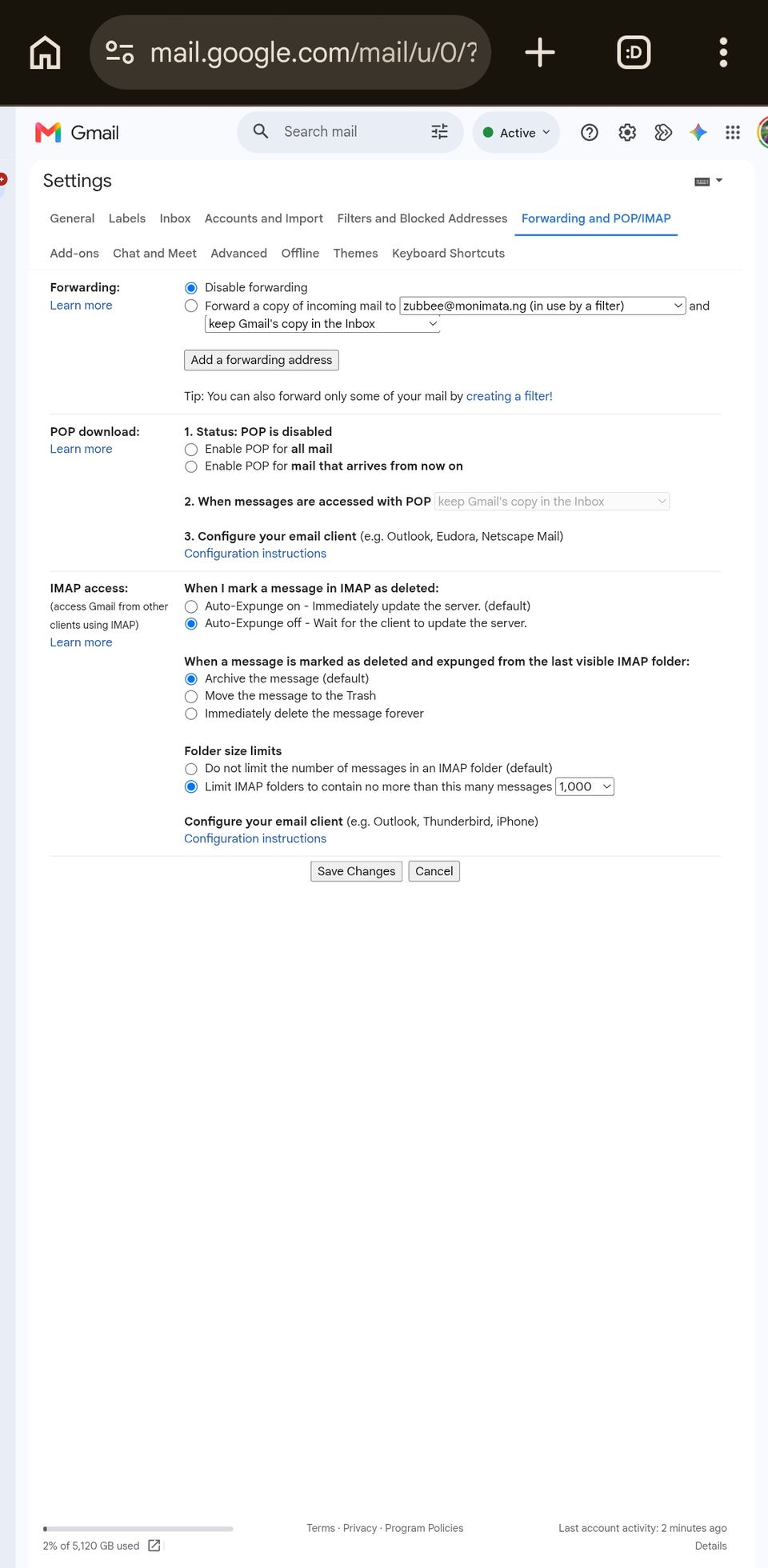
- Open Gmail on a desktop browser.
- Click the gear icon (⚙️) in the top-right and select See all settings.
- Click the Forwarding and POP/IMAP tab.
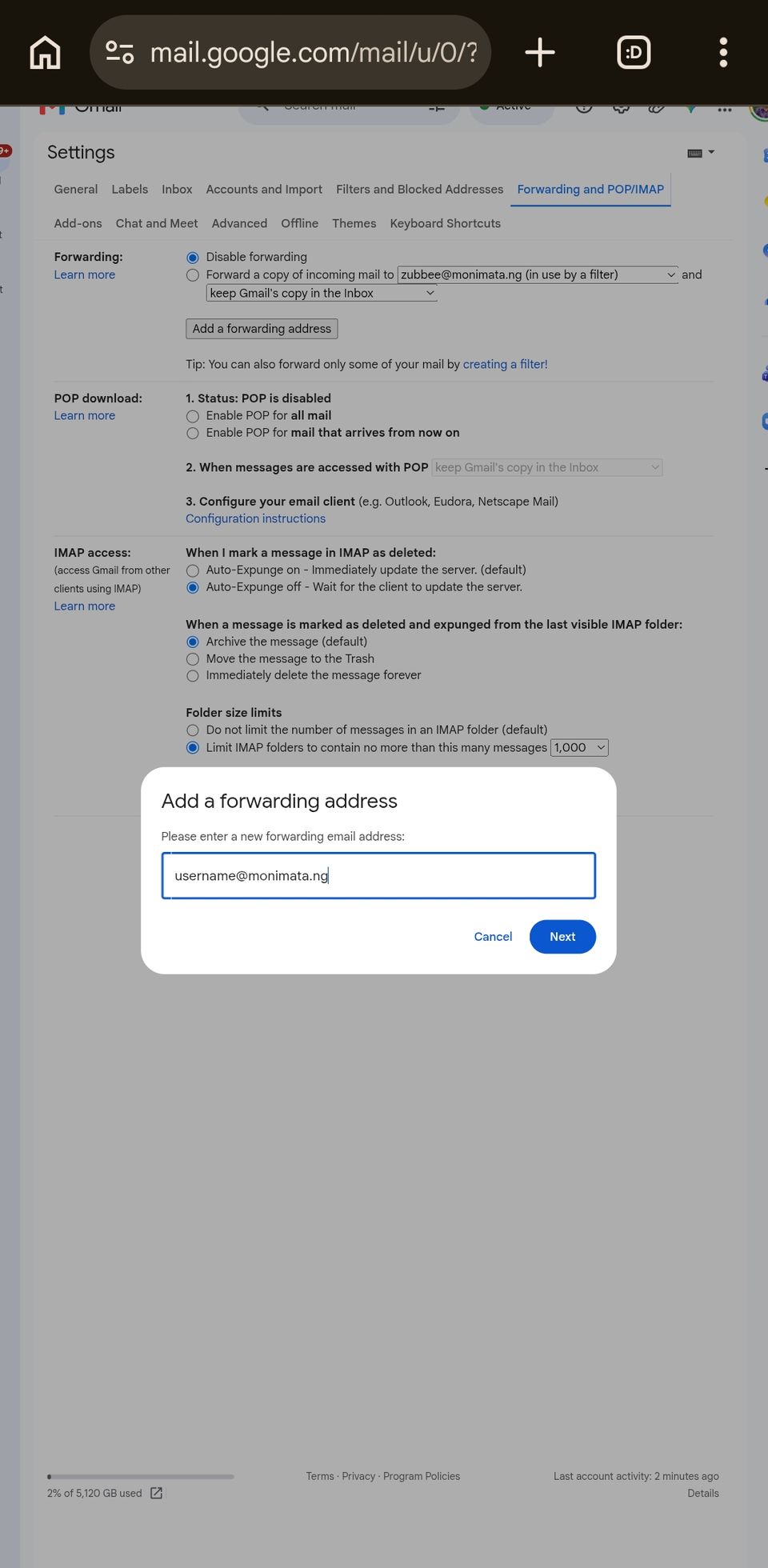
- Click Add a forwarding address.
- Enter your MoniMata forwarding address:
username@monimata.ng(replaceusernamewith your actual MoniMata username).
- Click Next, then Proceed to confirm.
Gmail will immediately send a verification email to username@monimata.ng. MoniMata intercepts this, extracts the confirmation link, and forwards it to your registered MoniMata email address.
- Check the inbox of the email address you signed up to MoniMata with. You’ll receive a message with a "Confirm forwarding" link.
- Click the link to verify the address.
- Back in Gmail Settings, the address should now show as verified. If it still shows "Pending", click Verify next to the address to trigger a fresh verification email.
Didn't receive the email after a minute? Go back to Gmail Settings → Forwarding and POP/IMAP, find username@monimata.ng in the list, and click Verify to send the verification email again.Step 5: Import the Filter into Gmail
Now that the forwarding address is verified, you can import the filter file you downloaded in Step 3. This tells Gmail which emails to forward and ensures only your bank alert emails are sent to MoniMata.
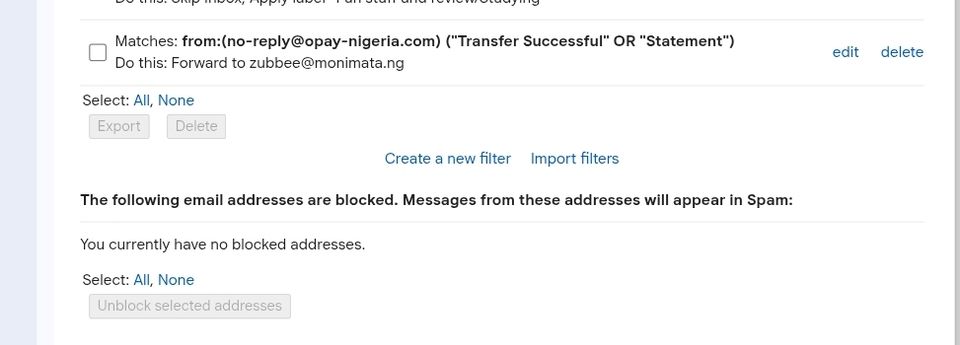
- Still in Gmail Settings, click the Filters and Blocked Addresses tab.
- Scroll to the bottom and click Import filters.
- Click Choose File and select the
monimata-gmail-filter.xmlfile you downloaded.
- Click Open file.
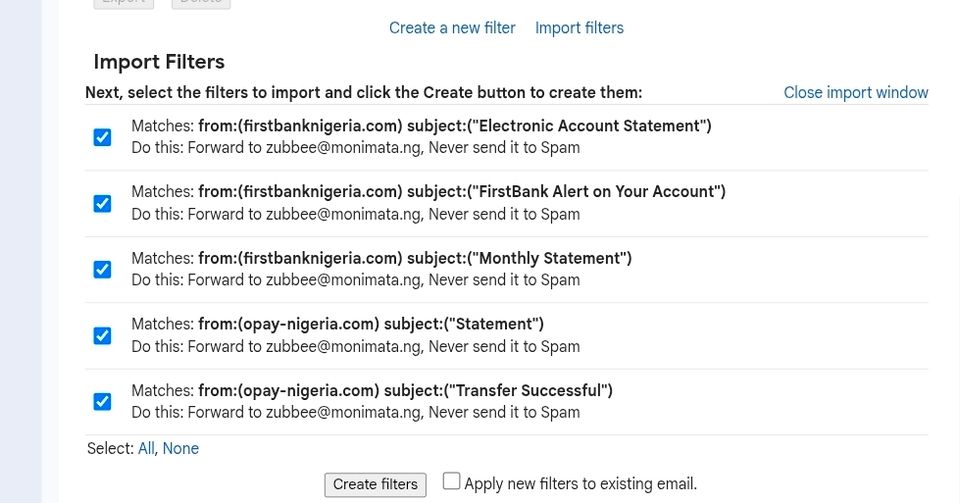
- You'll see a preview list of the filter rules: one row per bank alert keyword.
- Click Create filters.
- Gmail will ask you to verify that it’s you, just for security. It’s just Google being Google.
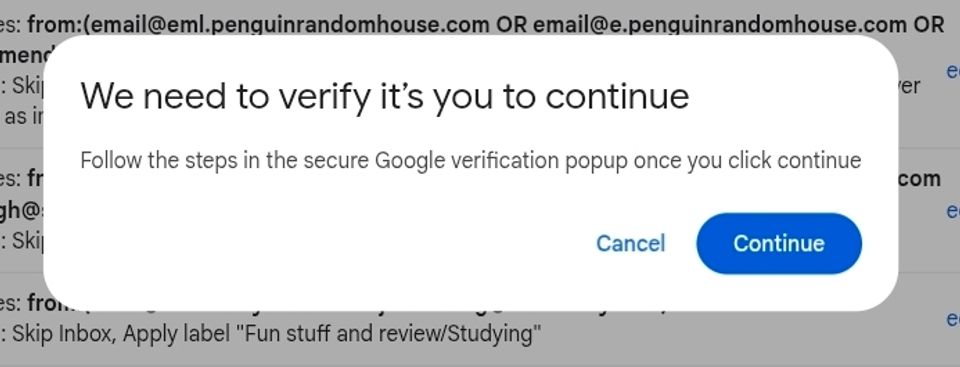
Gmail is now fully configured. Every matching bank alert that arrives in your inbox will be forwarded to MoniMata and tracked automatically.
Step 6: Trigger a Test Transaction
The easiest way to test is to make a small purchase or transfer with one of your linked bank accounts. Within seconds of the bank sending the alert email, you should see the transaction appear in MoniMata.
You can also check by sending yourself a test alert from your email client:
- Open Gmail (on the same account you set up filters on).
- Forward one of your existing bank alert emails to
username@monimata.ng.
Troubleshooting
I imported the filter, but transactions aren't appearing.
- Make sure the Gmail account that receives your bank alerts is the same account you imported the filter into.
- Check that your bank account exists in MoniMata (Step 2). If MoniMata can't match the alert to an account, it will skip it.
- Open Gmail Settings → Filters and confirm the rules are listed there. If not, re-import.
I bank with multiple accounts at the same bank.
That's fine. MoniMata matches each alert to the correct account using the last 4 digits of the account number included in the alert email.
My bank isn't in the supported list.
We're adding banks regularly. Contact us to request your bank. In the meantime, you can still use MoniMata by uploading your bank statement PDF via Accounts → Upload Statement.
I use a non-Gmail email provider.
Email forwarding works with any provider that supports rule-based forwarding (e.g. Outlook, Yahoo Mail, Proton Mail). The Gmail filter XML is Gmail-specific, but the forwarding address (username@monimata.ng) works with any sender. For other providers, set up a forwarding rule manually.
What Happens Next
Once forwarding is live, MoniMata will:
- Receive the forwarded alert email.
- Parse the amount, type (debit or credit), narration, and account number.
- Match it to your linked account.
- Create the transaction and attempt to categorise it automatically.
- Update your budget and notify you in real time.
You'll see new transactions appear in Transactions within a few seconds of your bank sending the alert. Categories are assigned automatically using your spending history and, if you've connected an AI key, an LLM fallback for anything the rule engine doesn't recognise.
For questions, reach out via hello@monimata.ng or check our other guides.